Calendar: Team timeline
Team leave Coverage timeline at /calendar (who=team). /calendar/coverage 301s to that view. Approve from the dashboard Approval Center, not a leftover Manage Requests label.
/calendar
Roles
Company admin · HR manager · Manager (scoped team)
The team timeline is the month view leaders use for coverage intelligence: who is off, when holidays land, and where vacations overlap across the roster. For one employee’s classic month grid (and “My Calendar” for staff), see Calendar: Employee month view.
/dashboard#approval-center).
Overview
Each row is an employee; each column is a calendar day in the month you’re viewing. Approved leave (and sometimes pending requests, depending on configuration) appears as labeled blocks so you can spot gaps and conflicts at a glance.
Team Coverage
Coverage is the default team timeline on /calendar (toggle Coverage vs List). The old bookmark /calendar/coverage redirects here with who=team&calendar_view=coverage.
Code legend
Cells use short codes. Colors may follow your company branding; meaning is always as below.
| Code | Leave type |
|---|---|
| V | Vacation |
| S | Sick |
| P | Personal |
| U | Unpaid |
| H | Holiday |
If your build shows an in-app legend in the header or sidebar, it matches these definitions.
How to use the grid
- Open Calendar. Sign in as a role that can access the team view (typically company admin, HR, or manager).
- Choose the team / timeline view. Select the month style that lists multiple employees (not only “my” calendar), if your navigation offers both.
- Navigate the month. Use previous / next / today controls to move through the year.
- Read the matrix. Move along a row to follow one person; move down a column to see everyone on one date.
- Act on requests elsewhere. Use the Approval Center to approve, deny, or comment — the timeline stays your planning view.
Summary statistics
The top summary may show metrics for the visible month — for example total employees in the grid, approved requests count, and pending count. Use that strip as a quick health check before you drill into individual rows or export reports.
Product screenshot
Below is the live UI capture for this screen (click to open full size in a new tab).
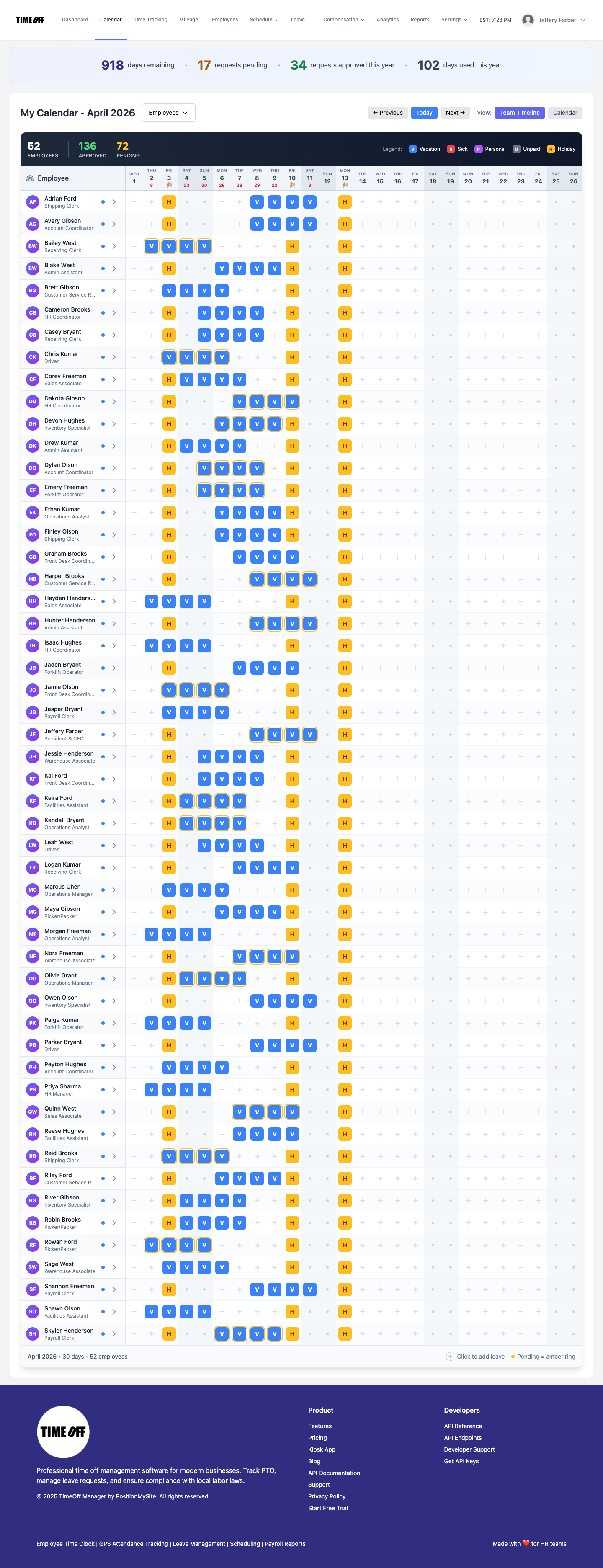
Team timeline — Coverage view (Acme demo).